


 Track
Track
 Login
Login



Prime moments best with Astro
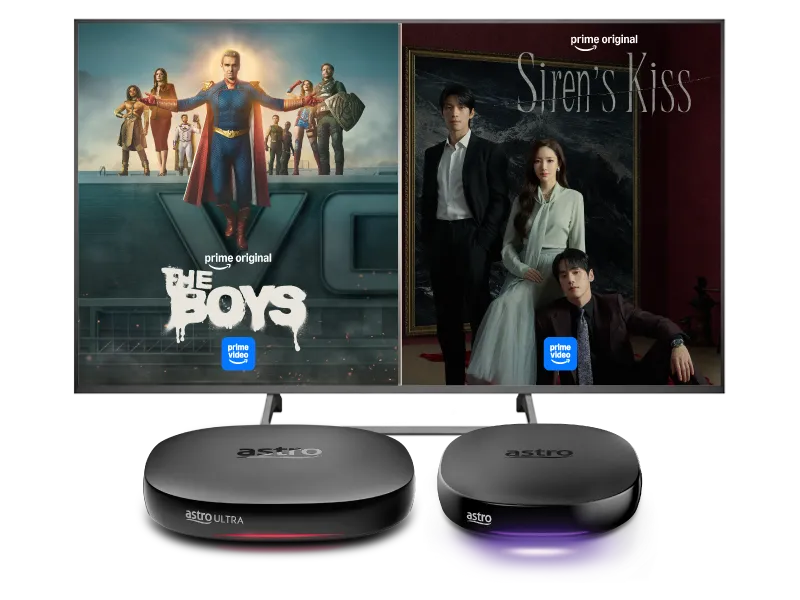
Stream the best of Prime Video with Astro Ultra & Ulti Box






Watch Prime Video on your Ultra & Ulti Box with this quick guide

Step 1
Click “Get or activate Prime Video now” below and log in with your Astro ID

Step 2
Click “Proceed” to activate your account via the Prime Video portal
Step 3
Create a Prime Video account using mobile number or email

Step 4
Upon successful activation, launch Prime Video via the apps rail on your Astro Ultra/ Ulti Box

Step 5
Sign in with your newly activated Prime Video account to pair your device

Step 6
Start streaming Prime Video on the BIG screen!
Subscribe to monthly Prime Video plans to upgrade your existing pack. Cancel anytime.
Frequently Asked Questions
Prime Video is Amazon’s over-the-top (OTT) streaming and rental service that offers access to a wide range of content including, exclusive Amazon originals, blockbuster movies and hit shows.
Prime Video is available as an add-on to all Astro customers at RM25 per month (tax included). However, Prime Video is available to the following Astro customers at no additional cost:
- Customers on the Ultra/Ulti Box with either the Astro One Epic Pack or Movies Pack as part of their subscription bundle.
- Customers not on the Ultra/Ulti Box but subscribed to either the Astro One Epic Pack or the Movies Pack as part of their subscription bundle, starting 24 June 2025.
Astro customers with the Ultra or Ulti Box can access Prime Video via their Ultra/Ulti Box or stream directly using the Prime Video app. If you have not yet upgraded to Astro’s Ultra/Ulti Box, please reach out to us on WhatsApp by sending “Hi” to 03-9543 3838.
Follow the steps below to activate and access Prime Video.
a. Via Astro’s Ultra/Ulti Box
Step 1: Launch Prime Video from the application rail (on the Home page)
Step 2: Scan the QR Code displayed on your TV screen using your mobile device to be redirected to the Prime Video app
Step 3: Once you are redirected to the Prime Video app on your mobile, create an Amazon Prime account using your mobile number or email address. Then click on ‘Verify mobile number’
Step 4: Now that you have activated your Prime Video account, your TV screen would be refreshed as below
Step 5: Click on Proceed and then on the “Sign in” button
Step 6: Pair your Ultra/Ulti Box to your Prime Video account by scanning the QR Code using your mobile device
Step 7: Enter the registration code displayed on your TV screen on either a mobile browser or open the Prime Video app on your mobile device, and then click "Allow".
b. Via Astro’s Website https://product.astro.com.my/apps/primevideo
Step 1: Visit https://product.astro.com.my/apps/primevideo and click on "Activate Prime Video Now" then log in using your Astro ID and follow the steps on screen.
Step 2: Scan the QR Code displayed on your TV screen using your mobile device to be redirected to the Prime Video app
Step 3: Once you are redirected to the Prime Video app on your mobile, create an Amazon Prime account using your mobile number or email address. Then click on ‘Verify mobile number’
Step 4: Now that you have activated your Prime Video account, your TV screen would be refreshed as below
Step 5: Click on Proceed and then on the “Sign in” button
Step 6: Pair your Ultra/Ulti Box to your Prime Video account by scanning the QR Code using your mobile device
Step 7: Enter the registration code displayed on your TV screen on either a mobile browser or open the Prime Video app on your mobile device, and then click "Allow".
c. Via My Astro app
Step 1: Download the My Astro app from the Apple App Store, Google Play Store, or Huawei AppGallery.
Step 2: Go to Account > Subscription > Add-ons > Manage your add-ons > select ‘Prime Video’ > Proceed then click on ‘Confirm order’
Step 3: Once done, go back to Account > Subscription > Add-ons. Here, you will be able to see ‘Prime Video’ under the list of ‘Apps’. Click on it and follow the steps displayed on screen to activate your Prime Video account
Step 4: Once you are redirected to the Prime Video app on your mobile, create an Amazon Prime account using your mobile number or email address. Then click on ‘Verify mobile number’
Step 5: Scan the QR Code displayed on your TV screen using your mobile device to be redirected to the Prime Video app
Step 6: Click on Proceed and then on the “Sign in” button
Step 7: Pair your Ultra/Ulti Box to your Prime Video account by scanning the QR Code using your mobile device
Step 8: Enter the registration code displayed on your TV screen on either a mobile browser or open the Prime Video app on your mobile device, and then click "Allow".
Step 9: Prime Video is now part of your subscription. Enjoy!
You can recover your Prime Video subscription here. Below are the steps.
Step 1: Visit the Recovery Page
Go to: https://product.astro.com.my/apps/primevideo#recovery
Step 2: Log In to Your Astro Account
If prompted, sign in with your Astro ID. If you're already logged in, proceed to the next step.
Step 3: Click “Proceed”
This will initiate the recovery process.
Step 4: View Your Sign-In Hint
A hint for your Prime Video login email/mobile number will be displayed. Use this hint to help you log in to your Prime Video account.